
YouCam Video: AI Video Editor
Perfect Mobile Corp.Video Players & Editors
3.8436.00 Reviews
- Version
- 1.64.1
- Installs
- 1.00M
- Age Rating
- Everyone
Screenshots

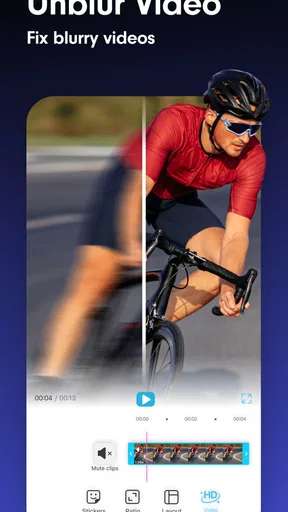
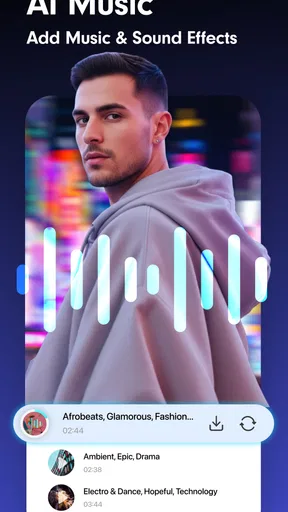

Our Review of YouCam Video: AI Video Editor
 Analysis by Appyee
I tend to judge a mobile video editor less by its longest feature list than by how quickly it helps me turn a usable clip into something I actually want to share. YouCam Video: AI Video Editor is aimed at that quick, visual kind of work: polishing a portrait, changing the feel of a clip, or putting together a short post without moving to a desktop editor. It is a free video-editing app from Perfect Mobile Corp., and its AI-oriented tools give it a different emphasis from editors built chiefly around a detailed timeline.
What “quick editing” means in practice
The appeal is not that every edit becomes effortless; it is that the app puts attention-grabbing adjustments close to the start of the process. If I have a short clip that needs a little visual cleanup before I share it, portrait enhancement or a filter is a more immediate first step than building a sequence from scratch. That makes the app approachable when the goal is one polished moment rather than a carefully assembled film.
That speed is best understood as a workflow expectation, not a promise that every operation finishes instantly. Simple trimming and arranging should feel like ordinary mobile editing, while AI-based changes may involve more processing than a basic cut. I would keep the original clip until I have checked the finished result, especially if I am experimenting with a dramatic background or a strong beauty effect.
Where it fits among mobile editors
Compared with a conventional editor whose main strength is a multitrack timeline, YouCam Video puts more of its identity into appearance-focused editing. That is useful for talking-to-camera posts, short portraits, and clips where the subject matters more than elaborate sequencing. A timeline-first alternative is usually the better choice when I need precise control over many shots, layered audio, or a long project with numerous revisions.
It also occupies a different space from a simple trimming tool. If all I need is to cut a beginning and an ending, a lightweight editor may be quicker and less distracting. YouCam Video makes more sense when I want to make a clip look deliberately styled, add text or music, or try a visual transformation as part of the edit.
A realistic everyday workflow
Imagine I record a quick update in my room before heading out. The message is clear, but the background is untidy and the lighting makes the clip feel flat. I can start by trimming away the pause before I speak, make a restrained appearance adjustment, and test whether a background change improves the frame. Then I can add a short text overlay if the post needs context and review the result on the phone before sharing.
The useful judgement call in that workflow is restraint. A small correction can make a casual recording feel more considered; stacking a strong filter, heavy beautification, and an artificial setting can make the subject look disconnected from the scene. I recommend comparing the edited clip with the original before exporting. If the face or hair edges look distracting against a new background, returning to a subtler treatment is often the better edit.
When AI helps—and when it gets in the way
AI effects are most compelling when they solve a visible problem or support a clear creative choice. A background swap can give a portrait clip a different mood, while beautification can soften the impact of an unflattering camera angle. They are less useful when the source video is already weak: an effect cannot replace a steady recording, understandable speech, or a subject positioned clearly in the frame.
For better results, I would record with the intended edit in mind. Leave some space around the subject if you plan to alter the background, and avoid moving the camera unnecessarily during a portrait shot. This is a practical trade-off: a little care during recording can reduce the need for conspicuous processing later. It also makes it easier to tell whether an effect is improving the clip rather than merely changing it.
Editing choices that save time
For a short social post, I find it useful to decide on the purpose before opening the effects. If the clip is meant to feel natural, begin with trimming and only add a light adjustment if it genuinely helps. If it is meant to be playful, a stronger visual treatment may fit—but I would still make one change at a time and preview it. That makes it easier to spot which effect is helping and which is making the image feel overworked.
Text and music can also change how a clip reads, so I would add them after the visual edit rather than trying to judge everything at once. Keep text short enough to read on a phone, and check that it does not cover the main subject. Music is useful for setting a mood, but if spoken audio is central, it should not compete with the voice. These small checks matter more than adding another decorative effect.
For a sequence made from several moments, consider the rhythm before choosing transitions. A transition can smooth a change between shots, but using an effect at every cut may draw attention away from the story. A clean cut is often stronger when the action already connects. The app’s transitions are a convenience, not a substitute for choosing clips that make sense in order.
Heavy edits, stability, and recovery
The most demanding moments are likely to be the ones involving several visual changes or a longer clip, rather than a simple trim. I would approach those edits in stages: make the basic cut, preview a key AI effect, and then add text or music once the overall look is settled. This keeps the decision-making manageable and makes it easier to identify which change needs adjusting if the preview does not look right.
As with any phone-based editor, perceived smoothness can depend on the device and the material being edited. I would avoid assuming that an effect preview will behave identically on every phone. If an edit feels sluggish, reducing the number of simultaneous changes and working with a shorter section first is a sensible test. Save or export a version you like before continuing to experiment, so a creative detour does not leave you without a usable result.
For reliability, the safest habit is to keep the camera original until the final export has been checked. Watch the exported video from beginning to end, not only the preview: confirm that the trim is right, the text is readable, and the transition does not interrupt the moment. This is especially worthwhile when the clip matters, such as a work announcement or a family update. I would not make an unreviewed edit the only copy of something important.
Who will get the most from it
I see the strongest fit for people who regularly make short, subject-focused videos and want approachable ways to refine their appearance or surroundings. Casual creators can use it for a quick story or a talking-to-camera post; someone who dislikes complicated editing software may appreciate being able to combine basic cuts with visual adjustments in one mobile workflow.
It is less suited to someone who wants detailed control over a long production, complex audio mixing, or a precise multitrack arrangement. In those cases, a more timeline-oriented editor is a better match. It may also be the wrong choice if you prefer a completely natural look and have no interest in appearance effects or background changes; a simpler editor can keep the process focused on cutting and arranging.
The app is free to install, though it offers in-app purchases ranging from $1.99 to $119.99 per item. I would explore the editing flow before paying for anything and check what is available in the version I am using. That is a more useful way to decide than assuming every tool or export choice will be included at no cost. The content rating is Everyone, which gives families a basic indication of the app’s age suitability, though it does not replace deciding whether a particular editing style is right for a child.
It has a 3.8 average from around 16,000 ratings, with over a million installs. Those figures suggest that it has found a substantial audience, but they do not tell me whether its AI effects suit my own taste. I would treat the first edit as a trial: use a short, nonessential clip, see how the controls feel, and judge the output on the platform where I intend to post it.
Getting Started with YouCam Video
Okay, so first things first, downloading YouCam Video is a breeze. It’s available on both Android and iOS, so no worries there. Once you’ve got it installed, the app greets you with a super clean and intuitive interface. Seriously, even if you’re a total newbie, you’ll feel like a video editing wizard in no time.
Features that Stand Out
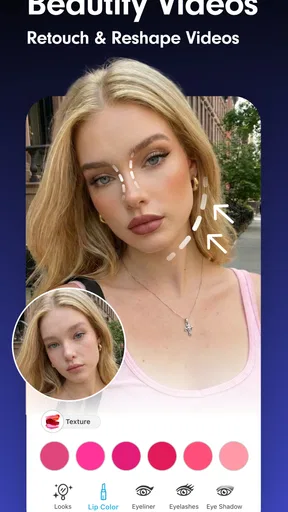
Let’s dive into what makes this app tick. The magic really happens with its AI-powered features. Whether you want to enhance your clips with vibrant filters or smooth over a bad hair day, YouCam Video has got you covered. One of my personal favorites is the beautify tool. It’s like having a makeup artist in your pocket, ready to give you that on-camera glow up.
Another neat feature is the background changer. With just a few taps, you can transport yourself from your messy bedroom to a tropical paradise. It’s like magic, and the AI does a surprisingly good job at making it look natural.
Editing Made Easy
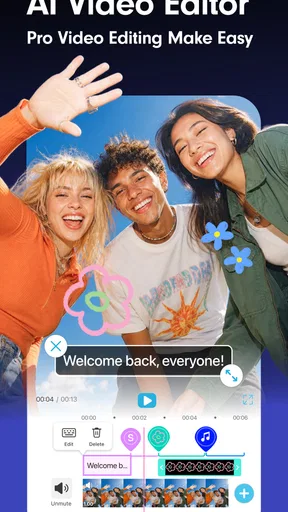
The app’s editing tools are both robust and user-friendly. You can trim, merge, and adjust speed with ease. Need to add some text or music? No problem. YouCam Video lets you overlay text and choose from a decent library of tunes to set the right mood for your masterpiece.
Now, let’s talk about transitions. We all know the pain of choppy video cuts. Thankfully, this app offers smooth transitions that give your videos a professional polish. You can choose from a variety of effects to keep your audience engaged and craving more.
Sharing Your Creations
Once you’ve crafted your video masterpiece, sharing it is a snap. YouCam Video integrates seamlessly with all major social platforms like Instagram, TikTok, and YouTube. Plus, the export options allow you to save your videos in high resolution so they look crisp and clear, no matter where you post them.
Final Thoughts
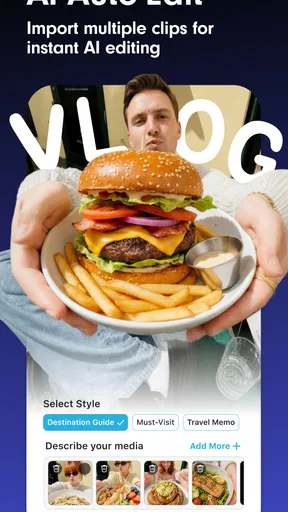
In a nutshell, YouCam Video: AI Video Editor is a powerhouse of an app. It’s packed with features that cater to both beginners and seasoned editors alike. Whether you're looking to make a quick Instagram story or a YouTube vlog, this app gives you the tools to do it all without breaking a sweat.
If you’re someone who loves creating content or simply wants to up your video game, I highly recommend giving YouCam Video a try. It’s like having a full editing suite right in your pocket, and trust me, you’ll be amazed at what you can create. So go ahead, download it, and let your creativity run wild!
Verdict
Strengths of YouCam Video: AI Video Editor
- Intuitive interface for easy editing.
- Wide range of AI filters and effects.
- Supports high-quality video exports.
- Frequent updates with new features.
- Seamless integration with social media.
Limitations of YouCam Video: AI Video Editor
- Limited free version features.
- Occasional in-app ad interruptions.
- Requires a stable internet connection.
- High-end device needed for best performance.
- Some features are subscription-based.
Other Releases by Perfect Mobile Corp.
View All
YouCam Perfect - Photo Editor
Photography3.9

YouCam Makeup: Face Editor
Photography4.0
Similar Picks in This Category
View All
Google TV
Google LLC3.9

iTunes
Apple4.7

YouTube
Google LLC3.8

MX Player
Amazon Mobile LLC4.2

CapCut - Video Editor
Bytedance Pte. Ltd.3.5

PLAYit-All in One Video Player
PLAYIT TECHNOLOGY PTE. LTD.4.5
Frequently Asked Questions
What features does YouCam Video: AI Video Editor offer?
YouCam Video provides a wide range of features including AI-driven video editing tools, beauty filters, and effects to enhance your videos. It allows users to adjust facial features in real-time, add makeup, and apply trendy filters. Additionally, it supports advanced video editing capabilities such as trimming, merging, and adding music tracks to your clips.
Can I use YouCam Video: AI Video Editor for free?
Yes, YouCam Video offers a free version with basic features. However, to access premium features and tools, a subscription is required. The premium version unlocks advanced editing tools, additional filters, and effects, providing a more comprehensive editing experience. It’s ideal for users looking for professional-grade video enhancements.
Is YouCam Video: AI Video Editor easy to use for beginners?
Absolutely! YouCam Video is designed with a user-friendly interface that caters to both beginners and experienced users. Its intuitive layout ensures that even those new to video editing can easily navigate through the features. The app also provides tutorials and guides to help users make the most out of its tools.
Does YouCam Video: AI Video Editor support all video formats?
YouCam Video supports a wide range of popular video formats, including MP4, MOV, and AVI. This compatibility ensures that users can import and edit videos from various sources without hassle. However, it's always recommended to check the app’s specifications for any updates or changes to supported formats.
Is YouCam Video: AI Video Editor available for both Android and iOS?
Yes, YouCam Video is available for download on both Android and iOS platforms. Users can find the app on the Google Play Store and the Apple App Store. This cross-platform availability ensures that users can enjoy seamless video editing experiences regardless of their device type.
